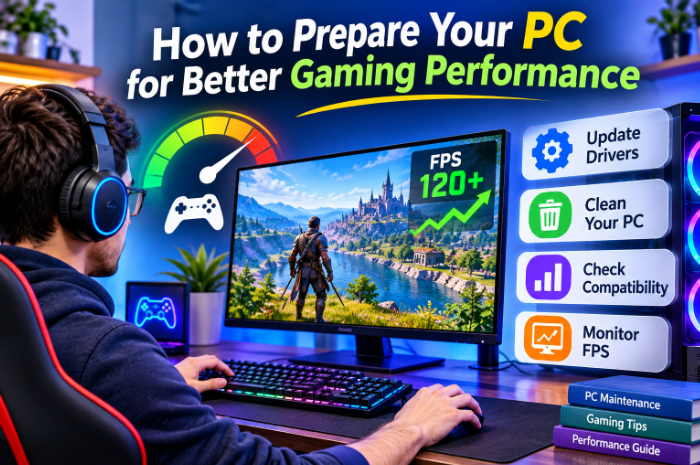
PC gaming continues to evolve, with modern titles offering detailed environments, advanced graphics, and increasingly demanding system requirements. While these improvements create more immersive experiences, they also place greater demands on computer hardware and software.
A game that runs smoothly on one computer may struggle on another, even when both systems appear to have similar specifications. Differences in graphics cards, processors, memory, drivers, and system configurations can all influence gaming performance.
Fortunately, improving your gaming experience does not always require purchasing an entirely new computer. Understanding your hardware, maintaining updated drivers, and checking performance can help you identify potential problems and make more informed decisions.
1. Understand Your PC’s Gaming Capabilities
Before installing a demanding game, it is worth checking whether your computer meets its system requirements.
Game developers generally provide minimum and recommended specifications. Minimum requirements indicate the basic hardware needed to run a game, while recommended specifications suggest a configuration intended to provide a more comfortable experience.
However, these requirements do not always tell the complete story. Two computers with similar processors and graphics cards may perform differently because of their memory configuration, cooling, storage, background applications, and software versions.
A useful starting point is to identify your computer’s main specifications:
- Processor (CPU)
- Graphics card (GPU)
- Installed RAM
- Available storage space
- Operating system version
- Graphics driver version
Windows provides several ways to check this information. Task Manager displays hardware usage, while the DirectX Diagnostic Tool can provide details about graphics and audio components.
Knowing these specifications makes it easier to understand whether your system is suitable for a particular game.
2. Check Game Compatibility Before Downloading
Downloading a large game only to discover that your computer cannot run it properly can be frustrating. Checking compatibility beforehand can save time, storage space, and unnecessary troubleshooting.
The online Can I run it tool can help users evaluate whether their PC specifications are suitable for selected games.
Such tools are useful when comparing a computer’s hardware with the requirements of a particular title. They can help users identify components that may need attention before making a purchase or starting a large download.
For example, someone interested in a recently released game might discover that their graphics card meets the minimum requirement but falls below the recommended specification.
This information can help set realistic expectations.
It is important to remember that compatibility checks are estimates, not guarantees of smooth gameplay. Actual performance also depends on graphics settings, game updates, background processes, and other system conditions.
3. Keep Graphics and Hardware Drivers Updated
Drivers allow the operating system to communicate with hardware components. Graphics drivers are particularly important for gaming because they help games use the capabilities of a graphics card correctly.
Outdated drivers can sometimes contribute to graphical errors, compatibility problems, or reduced performance in particular games. Manufacturers regularly release updates that may include bug fixes, security improvements, and support for newer titles.
Therefore, checking for relevant driver updates is a useful part of PC maintenance.
Users can update graphics drivers through official manufacturer software or websites. NVIDIA, AMD, and Intel provide driver resources for their supported hardware.
For people who want a more convenient way to review available driver updates, update drivers is another option to consider.
IObit Driver Booster is designed to help identify and update device drivers. Before installing any update, users should verify that it is appropriate for their hardware and operating system.
It is also sensible to avoid updating drivers unnecessarily when a system is stable. If a particular update causes problems, having a restore point or knowing how to roll back the driver can make troubleshooting easier.
4. Understand FPS and Why It Matters
FPS stands for frames per second. It describes how many individual frames a computer displays every second during gameplay.
A higher frame rate can make movement appear smoother, particularly in fast-paced games. However, the best FPS target depends on the game, monitor refresh rate, hardware capabilities, and personal preferences.
For example, a strategy game may remain enjoyable at a lower frame rate, while competitive shooters often benefit from smoother and more responsive visuals.
FPS can also fluctuate during gameplay. A game might maintain a high frame rate in an open area but experience drops during complex scenes involving many characters, effects, or environmental details.
This is why average FPS alone does not always tell the whole story. Frame-time consistency and sudden drops are also important when evaluating performance.
5. Use an FPS Test to Understand Performance
Instead of guessing whether a computer is performing well, it is better to collect some performance information.
An FPS test can help users estimate or evaluate gaming frame rates based on selected hardware and game configurations.
This can be useful when planning a PC build, comparing potential upgrades, or understanding whether a particular hardware combination is likely to meet gaming expectations.
For existing systems, users can also monitor FPS through supported in-game overlays or graphics software.
When comparing results, try to keep testing conditions consistent. Use the same resolution, graphics settings, and game environment whenever possible. Otherwise, differences in settings may make the comparison misleading.
A practical approach is to test a game before changing anything, make one adjustment, and then test again. This helps identify which changes actually improve performance.
6. Adjust Graphics Settings According to Your Hardware
Not every game needs to run at its highest graphics settings. Some visual options have a significant effect on performance, while others may produce only small differences in frame rate.
Common settings worth reviewing include:
- Resolution: Higher resolutions require more graphics processing power.
- Shadow quality: Detailed shadows can increase GPU workload.
- Texture quality: High-resolution textures require sufficient graphics memory.
- Anti-aliasing: This can improve edge smoothness but may affect performance.
- Ray tracing: Supported effects can create realistic lighting but may be demanding.
- Render scale: Reducing this setting can improve performance on some systems.
The best configuration depends on your hardware and the type of game you play.
Rather than lowering every setting, experiment with individual options. You may discover that a combination of medium and high settings provides a good balance between visual quality and smooth gameplay.
7. Reduce Unnecessary Background Activity
Applications running in the background can consume memory, processing power, and network resources.
Before starting a demanding game, review which applications are active. Web browsers with many open tabs, video-editing software, file transfers, and unnecessary launchers may affect available system resources.
Task Manager can help identify programs using unusually high amounts of CPU, memory, or disk activity.
You can also review Windows startup applications and disable automatic startup for programs that do not need to run immediately.
However, avoid closing unfamiliar system processes or essential security applications. The objective is to reduce unnecessary activity without affecting important computer functions.
8. Maintain Your PC for Long-Term Gaming
Good gaming performance depends on more than drivers and graphics settings. Regular maintenance helps keep the system organized and makes potential problems easier to identify.
Keep sufficient storage space available, install important security updates, and monitor temperatures during demanding gaming sessions. Dust buildup can affect cooling, so ensure that air vents are not blocked and that the computer has adequate airflow.
If your PC becomes unusually hot, crashes frequently, or suddenly loses performance, investigate the underlying cause rather than relying entirely on optimization software.
Hardware upgrades may eventually be necessary, but they should be based on actual limitations. Replacing a graphics card will not necessarily solve a problem caused by insufficient memory or overheating.
Final Thoughts
Preparing a PC for gaming involves understanding its hardware, checking game compatibility, maintaining drivers, and monitoring actual performance.
Tools that help estimate system compatibility and FPS can make hardware decisions easier, while appropriate driver updates may improve compatibility and resolve certain issues. Adjusting graphics settings and managing background applications can also help users get more from their existing computers.
There is no universal configuration that works perfectly for every game or PC. The most effective approach is to understand your system, test changes carefully, and choose settings that balance performance with visual quality.
With consistent maintenance and realistic expectations, PC gamers can make more informed decisions and enjoy a smoother gaming experience.